OWcli
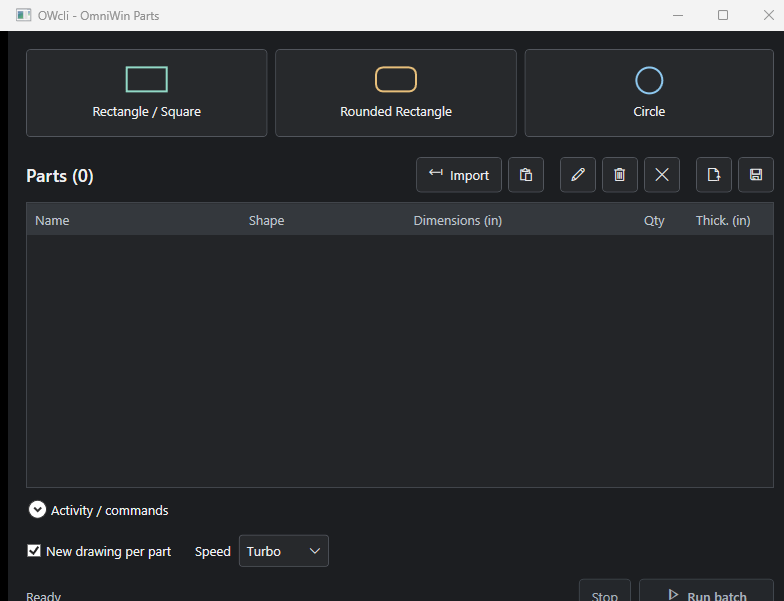
Creates OmniWin parts entirely in the background — driving the cutting software through window messages without ever moving the mouse, stealing focus, or interrupting the operator.
The problem
OmniWin is the nesting and cutting software the shop's plasma and plate machines run on. Getting parts into it meant an operator sitting in front of it, typing dimensions, one part at a time — for every work order, every day.
Interface automation was the obvious answer, but the usual approach is a disaster in a working shop: a robot that moves your mouse and steals your keyboard focus makes the machine unusable while it runs.
The approach
OWcli drives OmniWin through background window messages. It sends the commands the application already understands, straight to its window handles — so parts get created, but the mouse never moves, OmniWin is never activated, and the operator can keep working in another window the entire time.
Background message automation is unforgiving: you get no visual confirmation, and a mis-sequenced message silently produces the wrong geometry. OWcli couples every message with verification — after staging a batch, it re-reads the created parts and checks names, quantities, and thicknesses against what was requested.
What it does
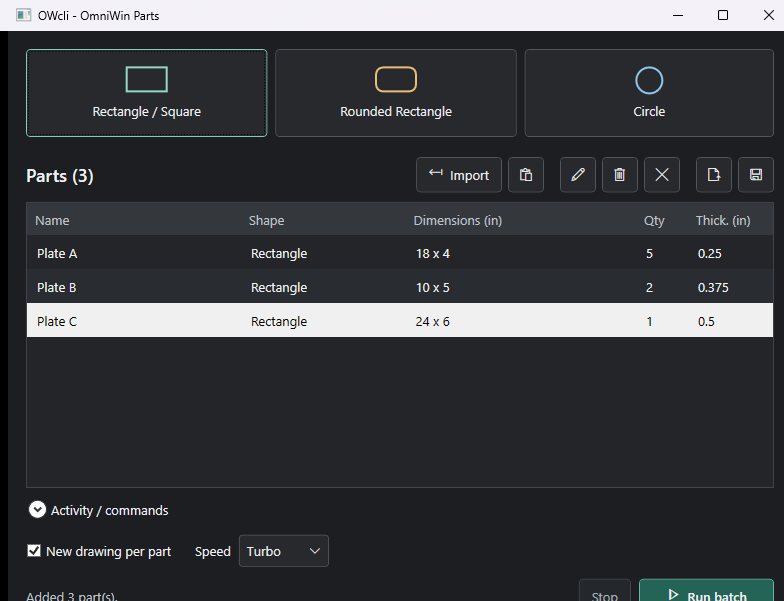
- Four plate shapes — circles, rectangles, squares, and rounded rectangles.
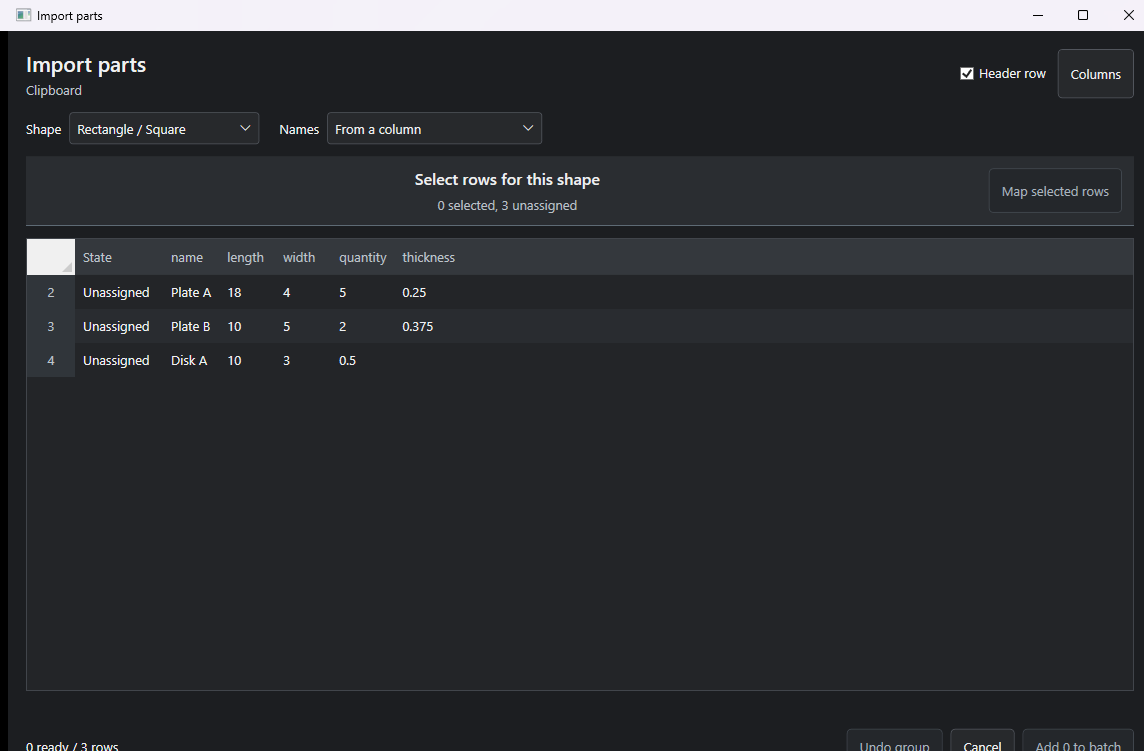
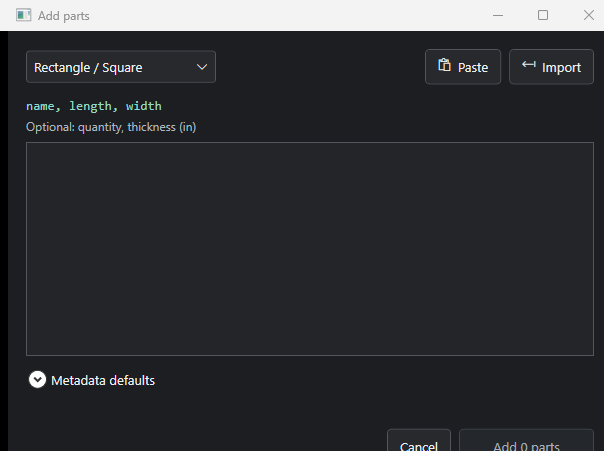
- Manual entry or import — type parts in, or bring in CSV/TSV files and clipboard data.
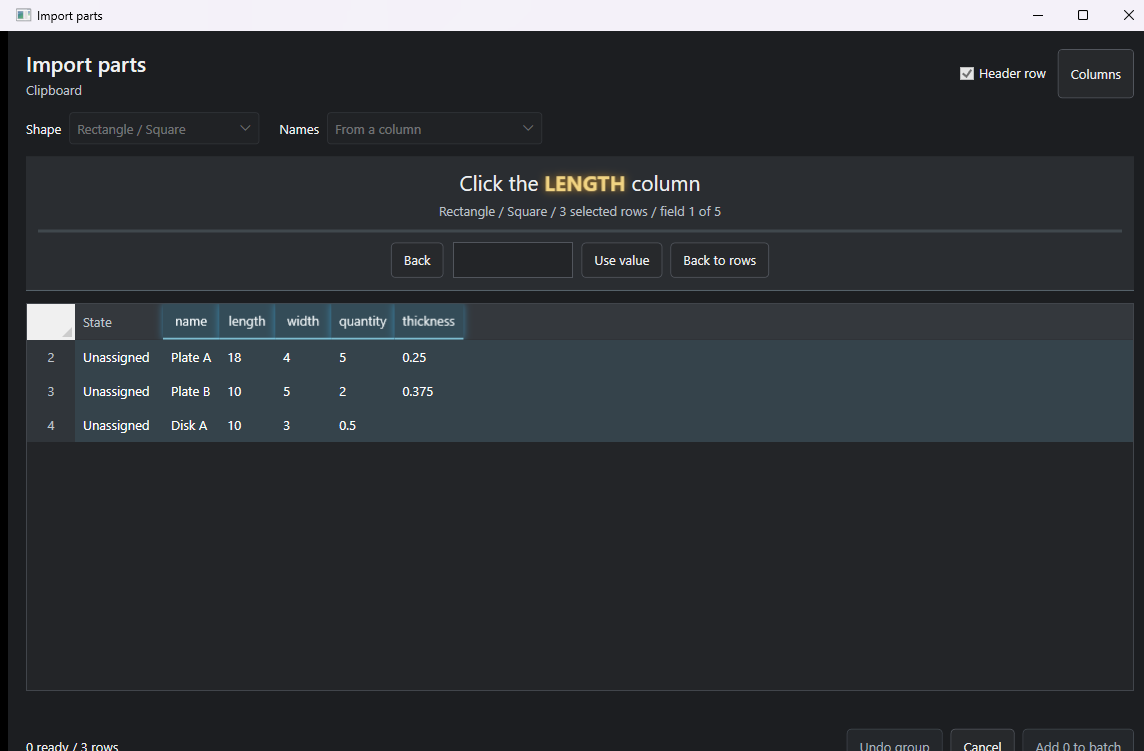
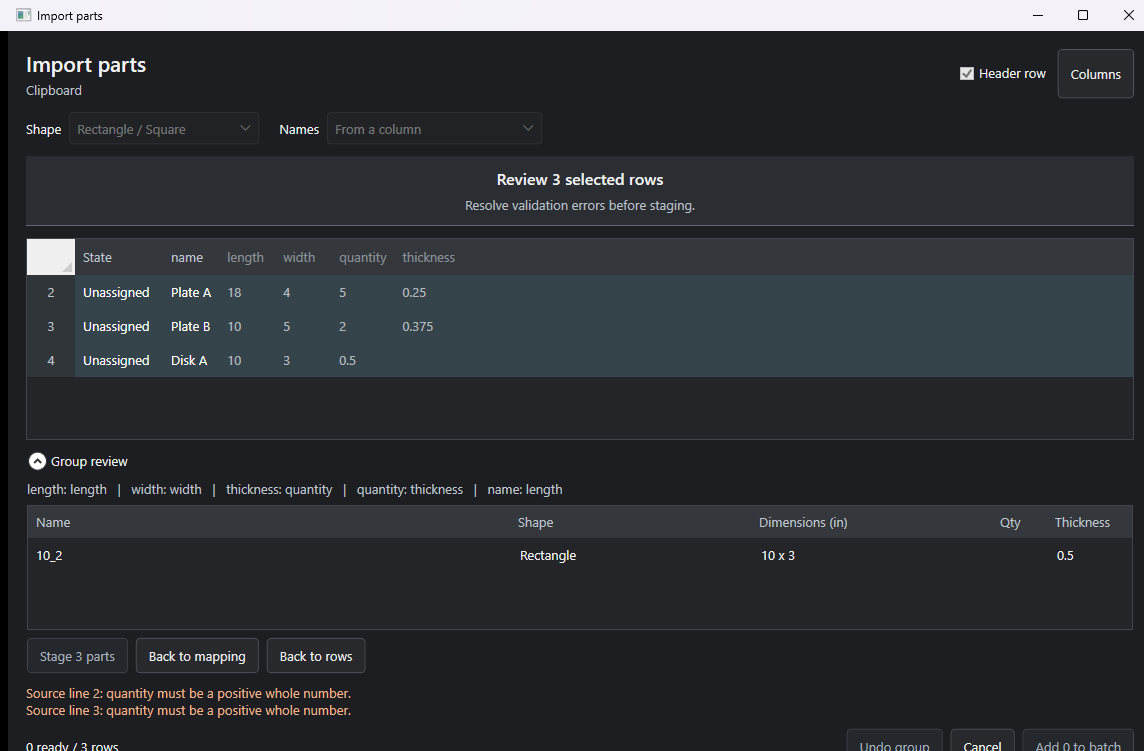
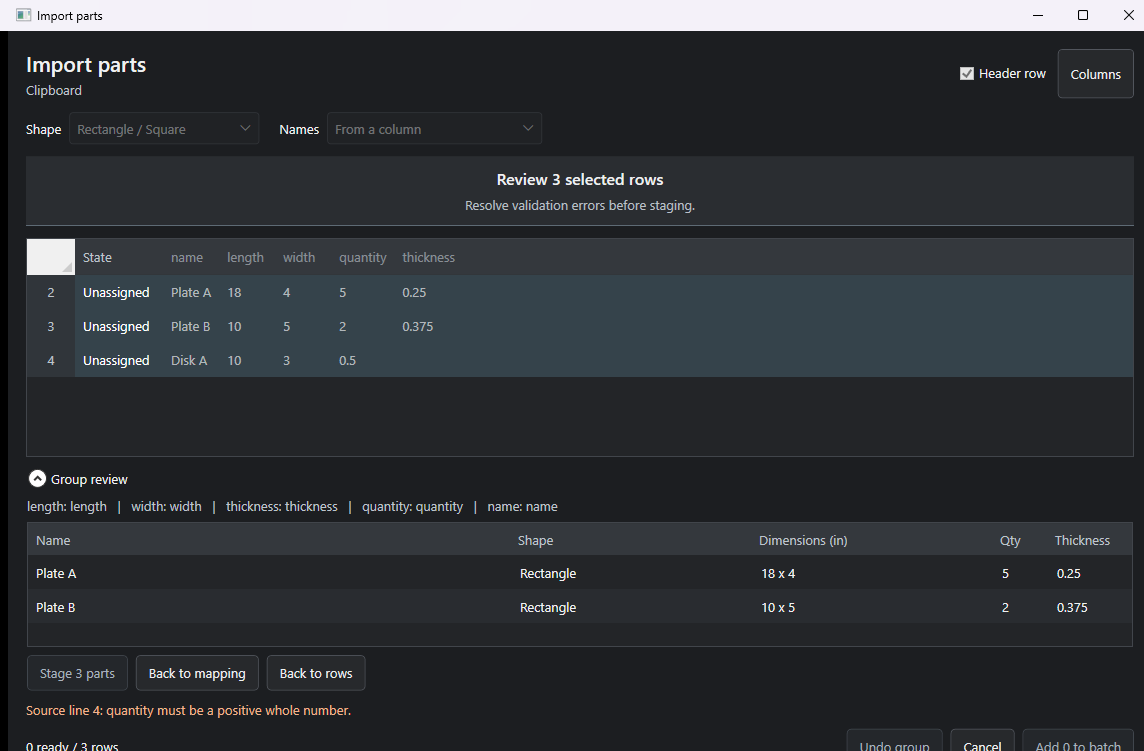
- Guided batch staging — select source rows, map columns to part fields, review the resulting groups, then stage the batch.
- Property verification — apply and verify part names, quantities, and thicknesses before anything is committed.
- Saved queues — batch queues persist, so a job can be staged today and drawn tomorrow.
- Turbo mode — the default speed, which trades a little caution for throughput once a workflow is trusted.
Screenshots
Self-verification built in
Because the app can't be watched while it runs, it has to be able to check its own work. Two test modes ship with it:
| Mode | What it proves |
|---|---|
| --entrytest | Exercises the entry pipeline with no OmniWin running and creates no drawings. Fast, safe, runnable anywhere — the mode I used constantly during development. |
| --selftest | Creates three real drawings in a live OmniWin session and reads their metadata back to confirm they landed correctly. |
That split — a headless correctness check plus a live end-to-end check — is what made background automation safe to hand to a production shop.
Requirements and deployment
- Windows with the .NET 8 SDK for development.
- OmniWin running with its Command Line and Part Properties panels visible.
Release builds publish as a self-contained single-file Windows x64 application — copy one executable to a machine and it runs, with no runtime install and no dependency chain to manage on the shop floor.