BomUp
Reads a BOM workbook, watches your JD Edwards tab, and drives the BOM and Work Order screens for you — pasting rows, ticking checkboxes, and submitting on its own.
What it is
Entering a Bill of Material into JD Edwards by hand is repetitive and error-prone: copy the support tag, filter the BOM rows, paste them, submit, then walk the Work Order checkbox list one row at a time. BomUp does that loop for you, at machine speed, with a pause hotkey whenever you need to take over.
It reads a BOM workbook, watches your JD Edwards browser tab, and drives the BOM and Work Order screens — pasting the right rows, ticking the right checkboxes, and submitting — while you keep your hands off the keyboard.
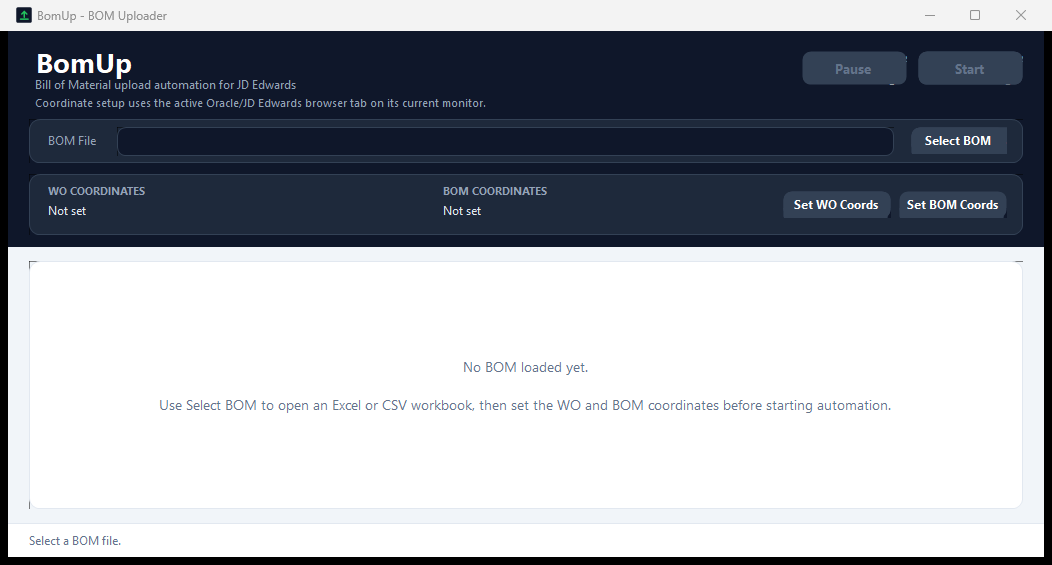
The empty state is part of that: rather than a blank panel, the grid area explains what to do next.
The loop it replaces
The manual workflow has a fixed shape, and every step is a chance to drop a line item or tick the wrong row:
- Open the BOM workbook and find the rows that belong to this support tag.
- Copy the support tag into the JDE BOM entry screen.
- Filter and paste the BOM rows, then submit.
- Switch to the Work Order screen and walk the checkbox list one row at a time.
- Repeat for the next tag.
BomUp collapses that into: select the workbook, set the two scan regions once, press Start. The same loop runs at machine speed, and the operator's job becomes verification instead of transcription.
Guided setup, not blind clicking
The part that makes screen automation fragile is coordinates. BomUp never guesses at them blindly — setup is a deliberate, visible step:
- Region selection overlay — drag a box over the area to scan, with a live size readout and per-pixel-alpha dimming so the page stays visible underneath.
- Visual confirmation — detected targets flash on screen as green markers, so you can verify what it found before committing.
- UI Automation first — detection tries the accessibility tree before falling back to a pixel heuristic inside the region you drew, so it stays accurate across zoom levels and window sizes.
- Per-window profiles — coordinates are stored per browser window title, so setup only needs redoing when the JDE layout changes or you switch monitors.
One region covers the Work Order checkbox column; the other covers the BOM entry screen, where BomUp locates the support-tag field and the empty text box. Both are drawn once and remembered.
Screen-aware automation
BomUp recognizes which JD Edwards screen is active and runs the matching step, rather than clicking a fixed sequence and hoping the page kept up. On the BOM screen it copies the support tag, filters and pastes the rows, and submits. On the Work Order screen it checks the next row and opens Enter Bom. Anything else, it waits.
Because the site can be slow, the submit step retries several times before giving up — and if it does give up, it stops rather than continuing into an unknown state.
Built to be interrupted
Automation that takes over the machine is only useful if you can take it back instantly. Two global hotkeys work from anywhere:
| Key | Action |
|---|---|
| Space | Pause automation and bring BomUp to the front |
| Ctrl+End | Stop automation |
A floating status pill sits at the bottom of the screen showing running or paused state without stealing focus, so you always know what the tool is doing without alt-tabbing to check.
Under the hood
It's a single WinForms application with the automation loop, the overlays, and the theme kept in separate files:
| Area | Contents |
|---|---|
| Main window | Workbook parsing, header normalization, the preview grid, detection, and the automation loop. |
| Overlays | The drag-to-select scan region and the green-marker confirmation overlay. |
| Status banner | The floating running/paused pill that never takes focus. |
| Theme | One palette file — a dark slate header over a light canvas, with a single accent reserved for the primary action. Custom-painted rounded buttons keep hover and press states consistent across Windows versions. |
| Preferences | BOM path, last folder, and both coordinate profiles persist between sessions. |
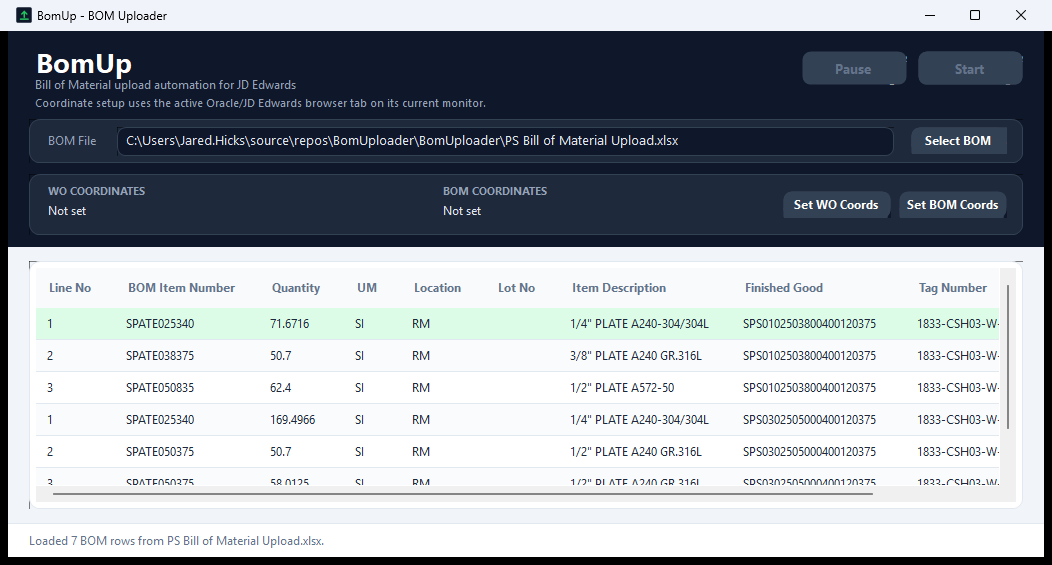
Workbook loading handles .xlsx, .xls, and .csv, normalizes the headers, and previews every row in a sortable grid with a sticky header and full-row selection — so the operator sees exactly what will be submitted before pressing Start.